 Hikaku
How to choose an AI image detector extension
An AI image detector extension sees every page you visit, so choosing one is a privacy decision as much as an accuracy one. Here's the checklist we used when we built Hikaku, and how to apply it to any extension, ours included.
1. Where are your images analyzed?
This is the big one. Some extensions send each image to a server for checking. That means a company receives a stream of what you browse. Others run the model on your own device, so nothing leaves your computer. Look for a clear statement in the privacy policy, not just the store page.
2. What permissions does it ask for?
An extension that checks images automatically needs access to the pages you visit; there's no way around that. What matters is what it does with that access. Read the permission list and the privacy policy together, and be wary of extensions that ask for history, tabs or cookies they don't explain.
3. Does it show evidence, or just a score?
A percentage with no explanation is hard to trust. Better tools tell you why: whether the file carries an AI label in its metadata, which model produced the score, and what the score can and can't mean.
4. Does it read Content Credentials and AI labels?
The strongest evidence often sits inside the file: a C2PA Content Credential, an IPTC "AI-generated" source type, or a generator's tag. A good extension checks these first and uses the model only when they're missing. More on this in our Content Credentials guide.
5. Are the accuracy claims honest?
Be skeptical of "99% accurate". Accuracy depends on the images: fresh generators, compression, film photos and renders all change the numbers. Look for published test results with the method and the failure cases, not just a headline figure.
6. Is the code open?
Open source lets anyone check what an extension does with your browsing. That matters for a tool with access to every page you visit.
7. Will it slow your browser down?
On-device models have to download once and need some processing power. Check the download size, whether it uses your GPU, and whether you can turn the model off.
How Hikaku answers the checklist
- Where: on your device. No server, no account, no analytics.
- Permissions: access to the sites you visit, so it can check their images, plus storage for settings and the right-click menu. Each is explained in the privacy policy.
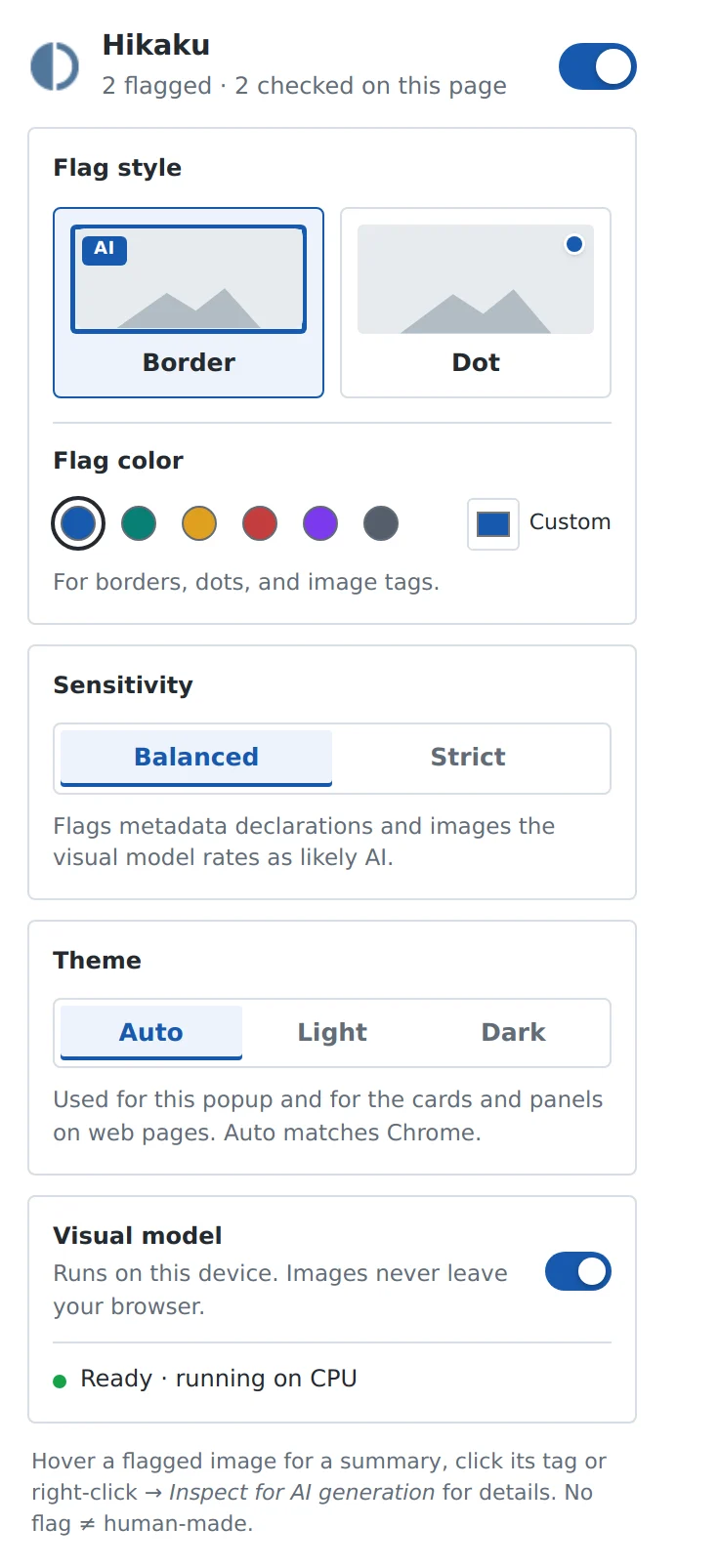
- Evidence: every flag opens a panel showing which signal fired and where it came from.
- Metadata: reads Content Credentials, IPTC labels and generator tags before running the model. It does not yet verify C2PA signatures.
- Accuracy: about 65% of AI images caught and about 6% of real photos wrongly flagged in our published benchmark. Video detection is experimental.
- Open source: Apache-2.0, on GitHub.
- Speed: a one-time model download of about 200 to 400 MB, then roughly 70 to 200 ms per image on a GPU. You can switch the model off and keep the metadata checks.
Common questions
Are AI detector extensions safe?
It depends on the extension. Prefer ones that analyze images on your device, explain their permissions and publish their code. Avoid extensions that upload what you browse without saying so clearly.
Do AI detector extensions work on every website?
They can check most images and many videos, but some sites block access to their media or show images in ways an extension can't read. Small icons and screenshots are usually skipped on purpose.
Is there a free AI image detector extension?
Yes. Hikaku is free and open source for Chrome, Edge and Firefox.